

Live-stream guide
Live translated captions for Twitch streams on iPhone & iPad
Check whether the stream already offers Twitch captions. If it does not—or the captions are not in a language you understand—use live translation as a fallback.
Vamos a intentar una última partida.
Let's try one last match.
Quick answer
Twitch can only show CC when captions are available on that stream.
Look for the CC button in the player, confirm the stream language, and update Twitch and iOS if the control should be present. If there is no caption track—or you need a translated language—Caplo can turn the stream audio into live translated captions.
Official options first
Check Twitch captions first
Twitch says its CC button appears only when captions are available for the live stream or video. These checks help distinguish a player problem from a stream that has no caption track.
- 01
Look for the CC button
Open the player controls. If CC appears, turn it on and use the player settings to adjust how captions look.
- 02
Confirm the stream language
A stream's language tag helps discovery, but it does not guarantee captions or translation. Check the creator's tags and channel information before assuming the player is broken.
- 03
Update the Twitch app and iOS
If captions should be available but the player control is missing or unresponsive, install current app and system updates, then reopen the stream.
Twitch's caption guide also points iOS viewers to Apple Live Captions when a creator does not provide CC. That can help with same-language transcription; use a translation tool only when you need to read the speech in another language.
Choose your path
Use the best caption source available
Creator-provided captions remain the best option. Live translation is for streams that do not provide what you need.
Translation fallback
Add live translated captions with Caplo
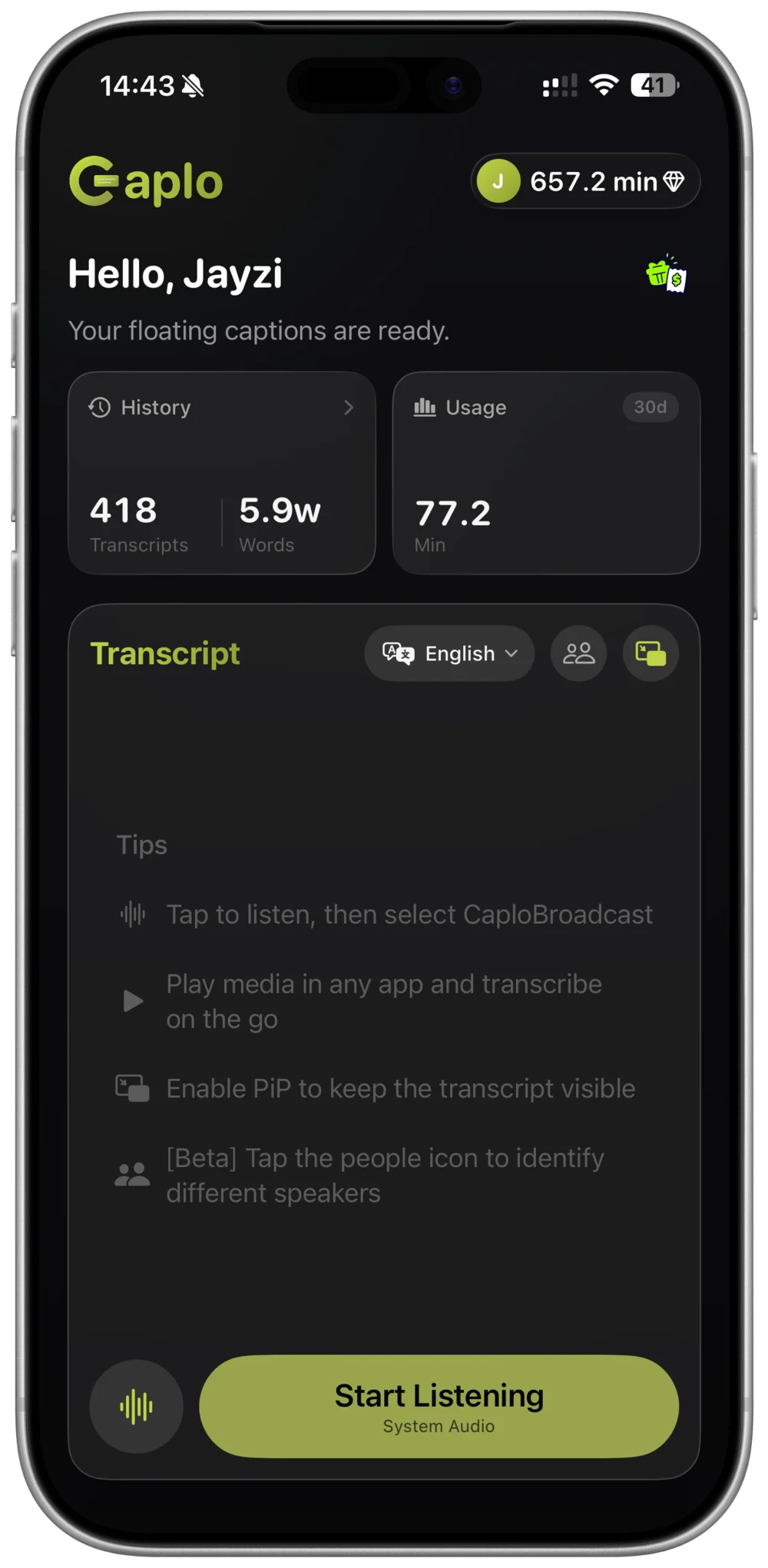
Caplo listens to Twitch app audio and shows translated speech in a floating Picture-in-Picture caption window while you watch.
- STEP 01
Choose languages
Select the stream's spoken language and the language you want to read.
- STEP 02
Start system audio
Begin Caplo's iOS screen broadcast, then return to Twitch.
- STEP 03
Watch the stream
Keep translated captions visible in a floating PiP window.
Know the tradeoffs
Twitch captions or Caplo translation?
Use creator-provided captions when they are available. Caplo is a practical translation layer for the gaps.
- Availability
- Twitch: only when supplied
- Caplo: generated from app audio
- Translation
- Twitch: depends on the stream
- Caplo: 60 supported languages
- Accuracy and delay
- Twitch: usually the better option
- Caplo: AI-generated and may lag
Limitations: Fast speech, game audio, music, overlapping voices, and creator-specific terms can reduce live recognition or translation accuracy. Captions may arrive after the spoken words.
Caplo translates spoken app audio; it does not translate Twitch chat or on-screen text. Caplo is an independent product and is not affiliated with or endorsed by Twitch.
Common questions
Twitch live-caption FAQ
Does every Twitch stream have closed captions?
No. Twitch shows the CC button only when captions are available for that stream or video. Availability depends on Twitch-produced content or what the creator supplies.
Can Caplo translate Twitch chat?
No. Caplo listens to spoken app audio. It does not read or translate chat messages, overlays, game menus, or other on-screen text.
Does Twitch live translation work on iPad?
Caplo supports iPhone and iPad. On iPad, the transcript can use a wider layout while Picture-in-Picture captions remain visible over compatible app audio.
Follow the stream, even when the language changes.
Add live translated captions to spoken Twitch audio on iPhone and iPad.
Download Caplo on the App Store