

LIVE TRANSCRIPTION GUIDE
Transcribe video and audio live on iPhone
Read it now. Keep the transcript.
Turn speech playing on your iPhone into text, then revisit the session afterward. This guide covers transcription during playback—not uploading a file for automatic conversion.
Choose an input
Where is the speech coming from?
A video or podcast on this iPhone
System audio
Transcribe during playback, if the source app allows audio capture.
Someone speaking nearby
Microphone
Listen to surrounding speech. This is a separate input, not a workaround for blocked app audio.
A saved audio or video file
Playback, not import
Try a compatible player. For batch file conversion, choose a dedicated file-transcription tool.
Start transcribing
Three steps from audio to text
Choose the audio source
Use system audio for a video or podcast playing on this iPhone. Use the microphone for speech around you; these are different inputs.
Start listening, then play
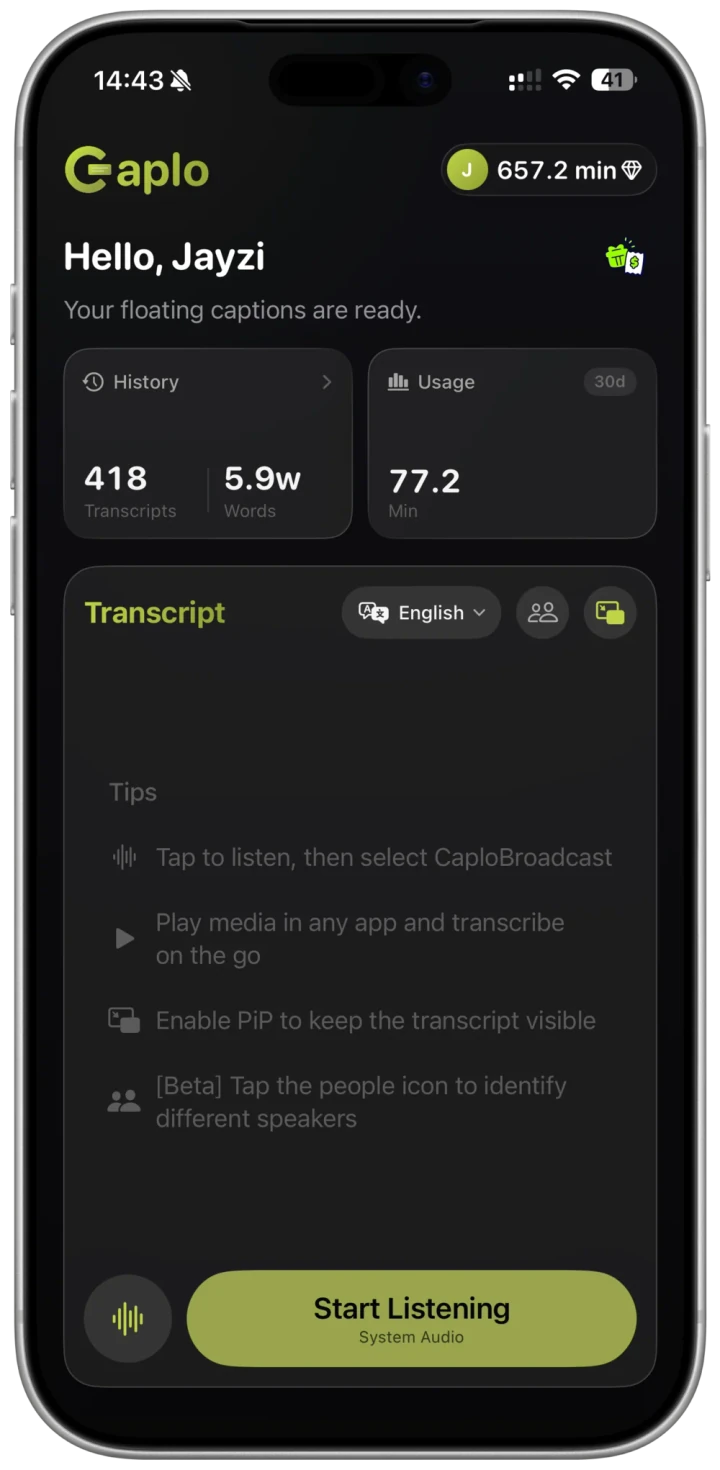
Start listening in Caplo. For system audio, select CaploBroadcast in the iOS broadcast sheet. Return to your player and check that text appears in Caplo.
Show floating captions if needed
Enable Picture-in-Picture captions when you want to watch and read together. Check that speech is being received, and stop the broadcast when finished.
Keep the text
Make the words useful after playback
Live captions help you follow along now; session history helps you revisit the words later. Check important passages against the original audio before quoting or reusing them.
- Find the session in history.
- Review names, terminology and recognition errors.
- Copy the text you need, or export it as Markdown.
A note from a lesson
Start with the task the person wants to complete, then choose the right tool. Understanding a video and producing a new video are different needs.
Illustrative text, not a recorded recognition result or the exact app export format.
Other options
Could the built-in tools be enough?
Choose by the job you need done, not by a “best app” ranking. Device, language and regional support vary.
READ SPEECH NOW
Check iPhone Live Captions
Review Apple’s current device and language support before adding another tool.
Apple’s Live Captions guide ↗TRANSCRIBE A RECORDING
Check Voice Memos
Recording transcription may already cover your task when it is supported.
Apple’s transcription guide ↗APP AUDIO + REUSABLE TEXT
Try the Caplo workflow
Check available app audio, floating captions, session history and Markdown export with a short sample.
Start with a short test →Support & limits
Is this the right workflow for you?
For speech during playback
Videos, podcasts, recorded courses and nearby speech through the microphone. System-audio availability depends on the source app.
Not bulk file transcription
No promise of video importing, link-based processing, dubbing or subtitled-video export.
Not call or meeting capture
Not for FaceTime, Zoom, Teams or Google Meet calls. Caplo cannot bypass protected-audio restrictions.
Check language and usage first
Check current device, language, minutes and network requirements in the app. Test briefly and review important details yourself.
FAQ
Questions about live transcription on iPhone
Do I have to translate into another language?
Transcription turns speech into text; translation converts it into another language. This guide focuses on keeping a text record. For understanding foreign-language videos, use the video translation guide.
Could built-in iPhone features be enough?
Some tasks can be handled by built-in captions or recording transcription, depending on device and language support. This Caplo workflow focuses on app audio, floating captions and reusing session text.
Can I transcribe a saved video?
Try playing it in a player that supplies audio to iOS screen broadcast, then check whether Caplo receives speech. This is not file import, and protected media or some players may not work.
Can I use an iPad?
Caplo also supports iPad. The source, live-text and history workflow is similar; source-app audio restrictions still apply.