

YOUTUBE TROUBLESHOOTING
YouTube auto-translate not working on iPhone?
Check captions first. Then choose your next step.
A missing CC button, a missing language and captions that fail to appear are different problems. Start with the matching check below before changing apps or trying another translation method.
Find your issue
What are you seeing?
Start with YouTube’s own subtitles. If they work in your language, you may not need an additional tool.
Check YouTube
Work through the matching check
No CC button on this video
Tap the player to reveal its controls. YouTube says that if the CC control is absent, closed captions are not available for that video. Compare with another video known to have captions.
Captions exist, but my language is missing
Open the caption settings and review the available languages. If Auto-translate is available, select your target language there. A caption track and a translated track are not the same thing.
The Auto-translate option is absent
First confirm that a caption track exists. Note whether you are watching a regular video or a live stream, and using the iPhone app or a browser. Do not assume every combination offers the same controls.
Captions are enabled, but no text appears
Replay a short spoken section and check another captioned video. If the issue affects multiple videos, check the current YouTube app version and official support information. Repeated reinstalling is not a guaranteed fix.
YouTube Help: caption settings on iPhone and iPad ↗
Controls and availability can vary by app version, video and viewing context. These are diagnostic checks, not a guaranteed repair.
Another way to watch
When spoken audio is available, try live translated captions
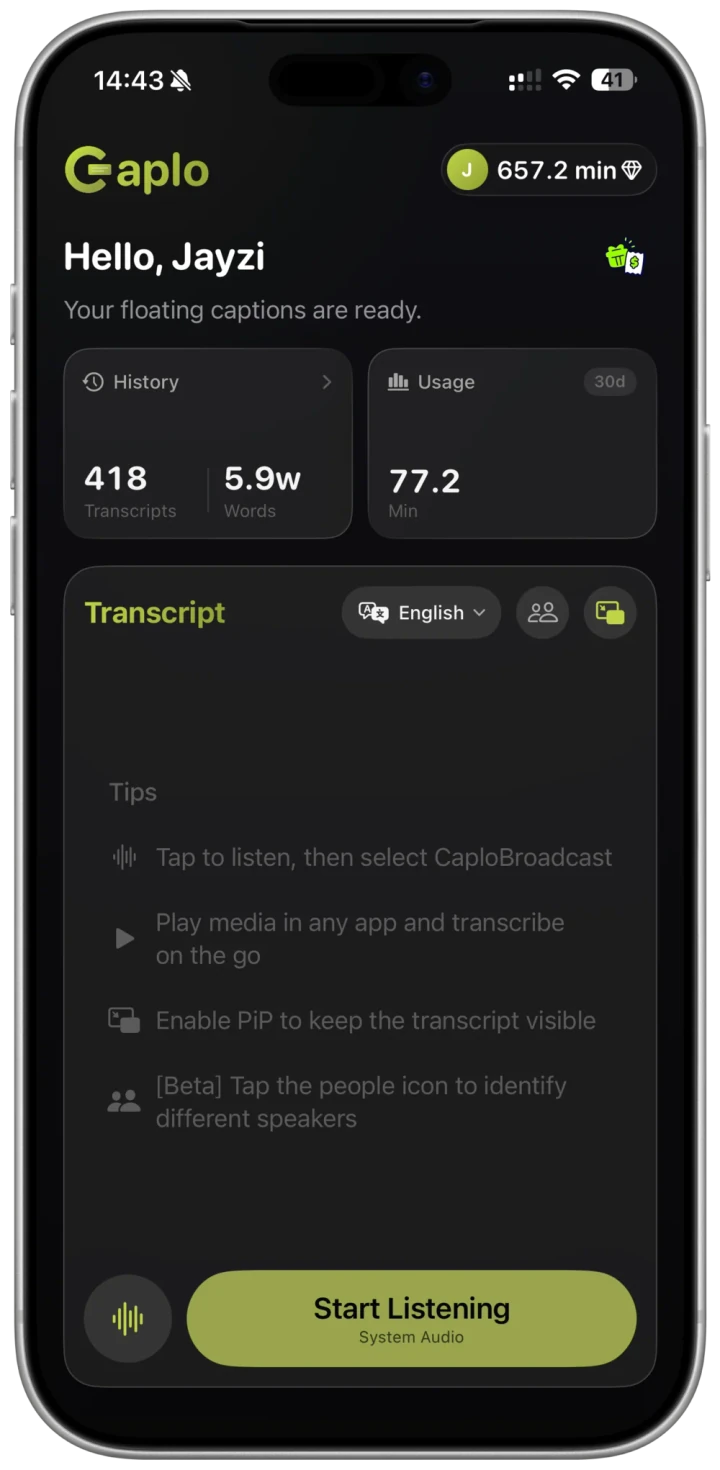
Caplo generates captions from available audio during playback. It does not repair YouTube’s caption tracks or unlock a missing YouTube setting.
Choose your languages
Select the language spoken in the video and the language you want to read. Match the source language to the speaker, not the app's interface.
Start system audio
Start listening in Caplo and select CaploBroadcast in the iOS screen broadcast sheet. For a video on this iPhone, use system audio rather than the microphone.
Return to your video and show PiP captions
Play the video and check that Caplo is receiving speech. Enable the floating Picture-in-Picture captions and position them away from the player's controls.
FAQ
Questions about YouTube captions on iPhone
Will Caplo add a subtitle track to YouTube?
No. Caplo’s captions are a separate viewing aid generated from available audio, not a new subtitle track inside YouTube.
Can this fix every live stream?
No. Live streams and ordinary videos can have different caption availability. Caplo also depends on whether spoken audio can be captured.
Can I keep the text afterward?
Caplo provides session history and Markdown export. Review important passages against the original audio before reusing them.